
Publishing & access / Field notes
Stop circulating outdated roster versions
A good file name is not enough. Agree who releases the roster, check the preview and tell workers where the current version lives.
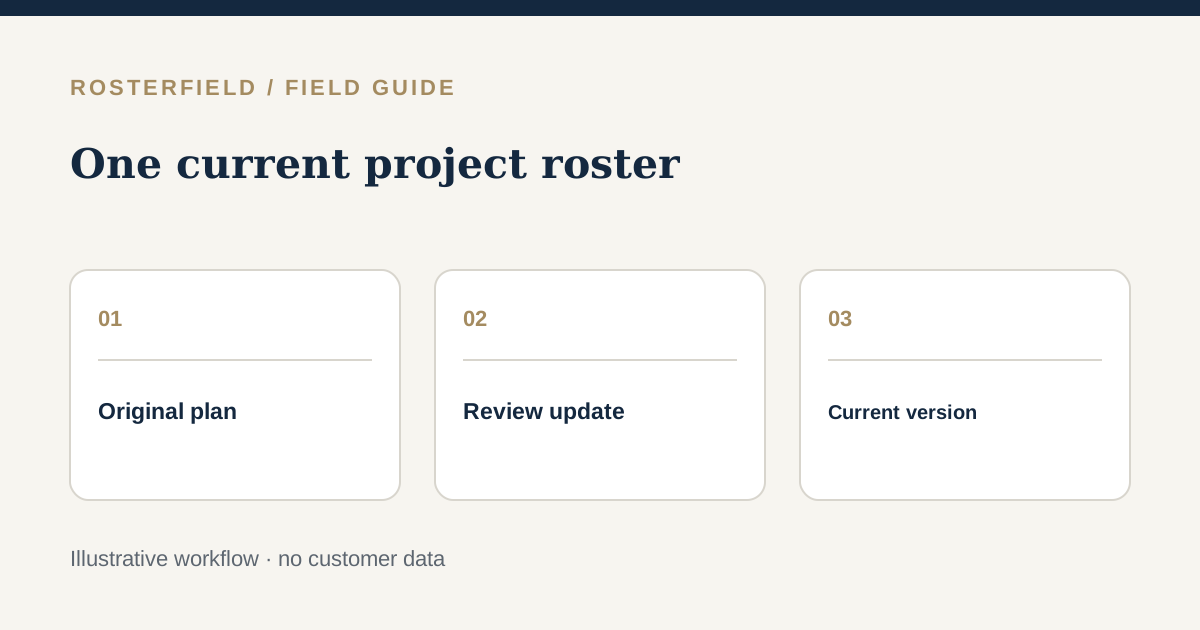
“Roster-final-v3.xlsx” often becomes “Roster-final-v4-revised.xlsx”. Both files may already be in email inboxes or messaging groups by the time the supervisor asks which one is current. Version control for a roster is not only about naming the workbook; it is about an agreed release decision and a reliable place for workers to check that release.
Name the source and the decision owner
Choose one source workbook for the project and period. Record who is allowed to prepare changes and who decides that an updated roster can be released. A clear source filename with project and period helps the administrator find the right file; it does not prove that every row or shift was checked.
Keep the planning source in your organisation’s normal document system. RosterField is the publishing step, not the only place a business should store its authoritative plan or a substitute for approvals.
Check changes rather than trusting “latest”
When a new version arrives, compare the important changes in the source: people added or removed, shift swaps, altered travel or leave, contractor/employer changes and new date columns. Then review the import preview. A change to the sheet structure may move the header or date axis without anyone intending to change a shift.
Repeated employment numbers require choosing the correct source record. Missing numbers cause people to be excluded. Unknown shift codes and formula-result warnings need attention as separate questions. Do not assume that because an earlier file imported well, its successor has the same columns, same calculation state or same status meanings.
For a quick operational check, note three known people and their dates before upload, then locate the same assignments in the preview. If a worker is missing, investigate the identifier or date range. Update the preview after making decisions, and read every blocker before publishing.
Release and communicate
On publication, the reviewed version becomes the current project roster. Earlier uploaded versions remain in project roster history for administrators unless deleted through the app. That history can help investigate what was published earlier, but it does not automatically notify every worker of an adjustment or erase an already downloaded copy.
Give workers the project link or QR code through an approved channel and explain that the page shows the current publication. A person with the link can search by name without signing in. Do not add sensitive data to a worker-facing roster on the assumption that only its intended recipient can open it.
If a shift changes after publication, treat that as another release: update the workbook, inspect the revised import and publish again. For time-critical changes, follow your organisation’s direct notification procedure as well; a new webpage alone does not ensure someone has seen the change.
What the history does not decide
Version history cannot determine whether staffing is sufficient, a person is competent for a task or a change was communicated in line with an agreement. Nor does it turn a draft upload into an approved plan. Those decisions require accountable people and site processes.
The Excel upload checklist describes the repeatable pre-release checks. For access considerations read sharing worker rosters.
Questions people ask
Does a new release delete every older roster?
No. Earlier versions remain in administrator history unless removed through the app. Screenshots and offline copies held on workers’ devices may also outlast the change; communicate material revisions.
Can an administrator publish a draft and correct it later?
The workflow permits another publication, but a wrong version may already have been viewed. Check the exact people, dates and statuses before the first release, and follow a direct correction process if something changes.